I2C OLED Display
In this example we will learn how to use the OLED display with I2C communication, exploring the basic features using CircuitPython.
Required Materials
Identify the following materials needed for this project:
- 1 Franzininho WiFi
- 1 128x64 I2C OLED display
- 1 Breadboard
- Jumper wires
Circuit
The next step is to assemble the circuit as shown in the figure below:
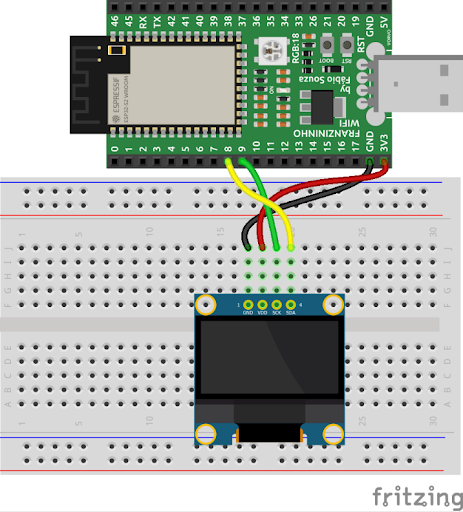
Summarizing what is shown in Figures 4.2 through 4.5, the connections between the OLED terminals and the board terminals must be made as shown in the table below.
| OLED I2C | Franzininho WiFi |
|---|---|
| SDA (DATA) | GPIO8 |
| SCK (CLK) | GPIO9 |
| VDD | 3V3 |
| GND | GND |
Code
Since the OLED display is a component with fairly complex operation, we will use a library that implements all the features, allowing our programs to be implemented in a very simple and productive way.
CircuitPython libraries can be obtained at https://circuitpython.org/libraries. Choose and download the file according to the CircuitPython version installed on your Franzininho WiFi.
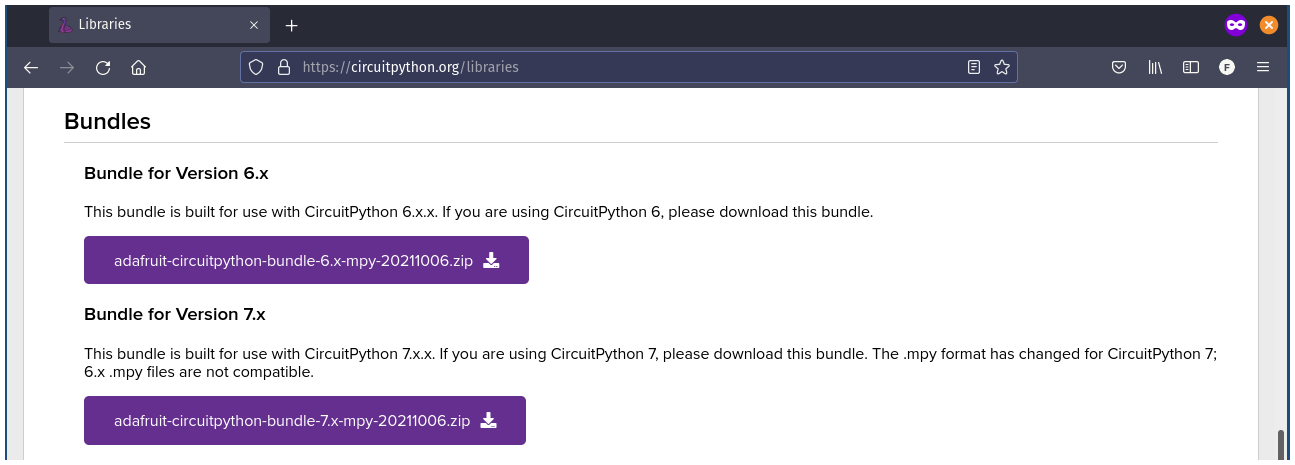
Then, copy the following files directly to the lib folder of the Franzininho WiFi filesystem:
- adafruit_ssd1306.mpy
- adafruit_framebuf.mpy
Also copy the font5x8.bin file, but in this case to the root folder of the Franzininho WiFi. Finally, implement the program below in the code.py file located in the root folder of the Franzininho WiFi.
import board
import busio
import adafruit_ssd1306
import time

i2c = busio.I2C(scl=board.IO9, sda=board.IO8)
oled = adafruit_ssd1306.SSD1306_I2C(128, 64, i2c, addr=0x3C)

try:
  inverter = False
  while True:
    oled.invert(inverter)
    oled.fill(0)
    oled.rect(0, 0, 128, 64, 1)
    oled.rect(2, 2, 124, 60, 1)
    oled.text('Franzininho', 4, 4, 1)
    oled.text('WiFi', 4, 14, 1)
    oled.show()
    inverter = not inverter
    time.sleep(2)
finally:
  oled.invert(False)
  oled.fill(0)
  oled.show()
Code Analysis
We must import the busio and adafruit_ssd1306 libraries, which will be responsible for the classes that enable I2C communication and use of the OLED display, respectively.
import busio
import adafruit_ssd1306
The I2C communication will be carried out through the IO9 and IO8 terminals of the Franzininho WiFi, as can be seen in the pinout available at https://franzininho.github.io/docs-franzininho-site/docs/franzininho-wifi/franzininho-wifi
i2c = busio.I2C(scl=board.IO9, sda=board.IO8)
The OLED display configuration must take into account its dimensions and its address on the I2C bus.
oled = adafruit_ssd1306.SSD1306_I2C(128, 64, i2c, addr=0x3C)
In this program the goal is to invert the display content every 2 seconds. For this, the invert method will be used, receiving a boolean variable as a parameter, with its value alternating between True and False.
oled.invert(inverter)
The fill method is used to fill the entire display area and will work together with the invert method. Since this is a monochromatic display, we have two available colors: 0 (zero) which represents black (pixel off) and 1 (one) for white (pixel on), when the invert method received False as parameter. On the other hand, when invert receives True as a parameter, 1 (one) represents black (pixel off) and 0 (zero) specifies white (pixel on).
oled.invert(inverter)
oled.fill(0)
Next, the rect method was used to draw a rectangle starting at coordinates x = 0 and y = 0 with 128 pixels wide and 64 pixels tall, and then another slightly smaller rectangle. The last parameter of the rect method is the color, which in this example will be white. This way we end up drawing a double border surrounding the entire display area.
oled.rect(0, 0, 128, 64, 1)
oled.rect(2, 2, 124, 60, 1)
The text method allows displaying text at the specified coordinates and color.
oled.text('Franzininho', 4, 4, 1)
oled.text('WiFi', 4, 14, 1)
The show method will execute the previously used methods — fill, rect, and text — on the display. That is, any content is only shown on the display when the show method is called.
oled.show()
Try displaying other texts and images. Share your results with the community.
If you have any questions, consult the Franzininho community on Discord
| Author | Cláudio Luís Vieira Oliveira |
|---|---|
| Date: | 07/10/2021 |